
 EN
EN Spanish
 French
 Portuguese
 Arabic
 Turkish
 German
 Italian
 Polish
 Greek
Greek Russian
How to set a default launcher on Android TV when the home button opens the stock launcher: change the home screen on Google TV, Nvidia Shield, Chromecast or Fire TV and make the HOME button open Premium TV Launcher. When the accessibility service keeps stopping, Launcher Manager by sweenwolf sets the Home app directly after one WRITE_SECURE_SETTINGS grant — the route that works on Fire TV.
Make the HOME button yours
On many TVs — Nvidia Shield, Sony, Xiaomi, Chromecast — the HOME button is locked to the stock launcher, and Android offers no picker. That is a platform decision, not a bug. Here is every way around it, from the two-minute route to the one for experts.
Our companion app finds PLUI on the TV and offers to map HOME itself. Works with the Play build, on any Android version.
Fire TV, boxes without Play — or if you want a single app. A guided wizard, no forum threads.
No services, no companion app, fully reversible. One evening's patience.
A third-party tool, run from the TV itself. For Fire TV, for boxes with no Home app setting — and when accessibility keeps stopping.
Let Button Mapper TV set it up
Our companion app does one job: it hears a remote button and opens what you told it to. The moment its permissions are granted it looks for Premium TV Launcher on the TV — and if it finds it, it offers to map HOME right there. One press of Yes. Keep the Play Store build and its automatic updates.
Install Button Mapper TV: in Downloader TV enter code 06350, or get it on Google Play.
Open it and switch on the accessibility permission it asks for (Settings › Accessibility › Button Mapper TV › On).
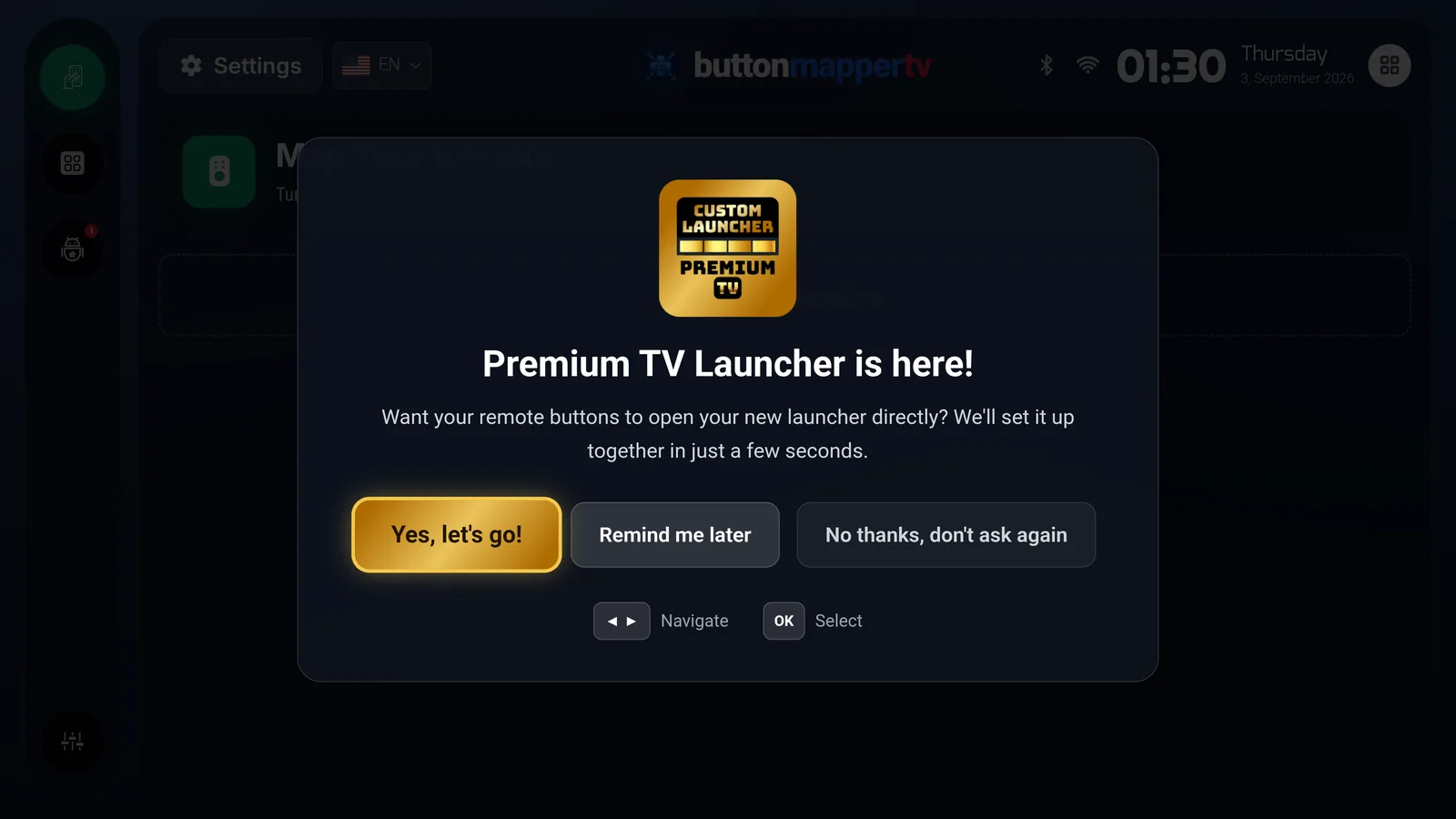
"Premium TV Launcher is here!" appears. Choose Yes, let's go.
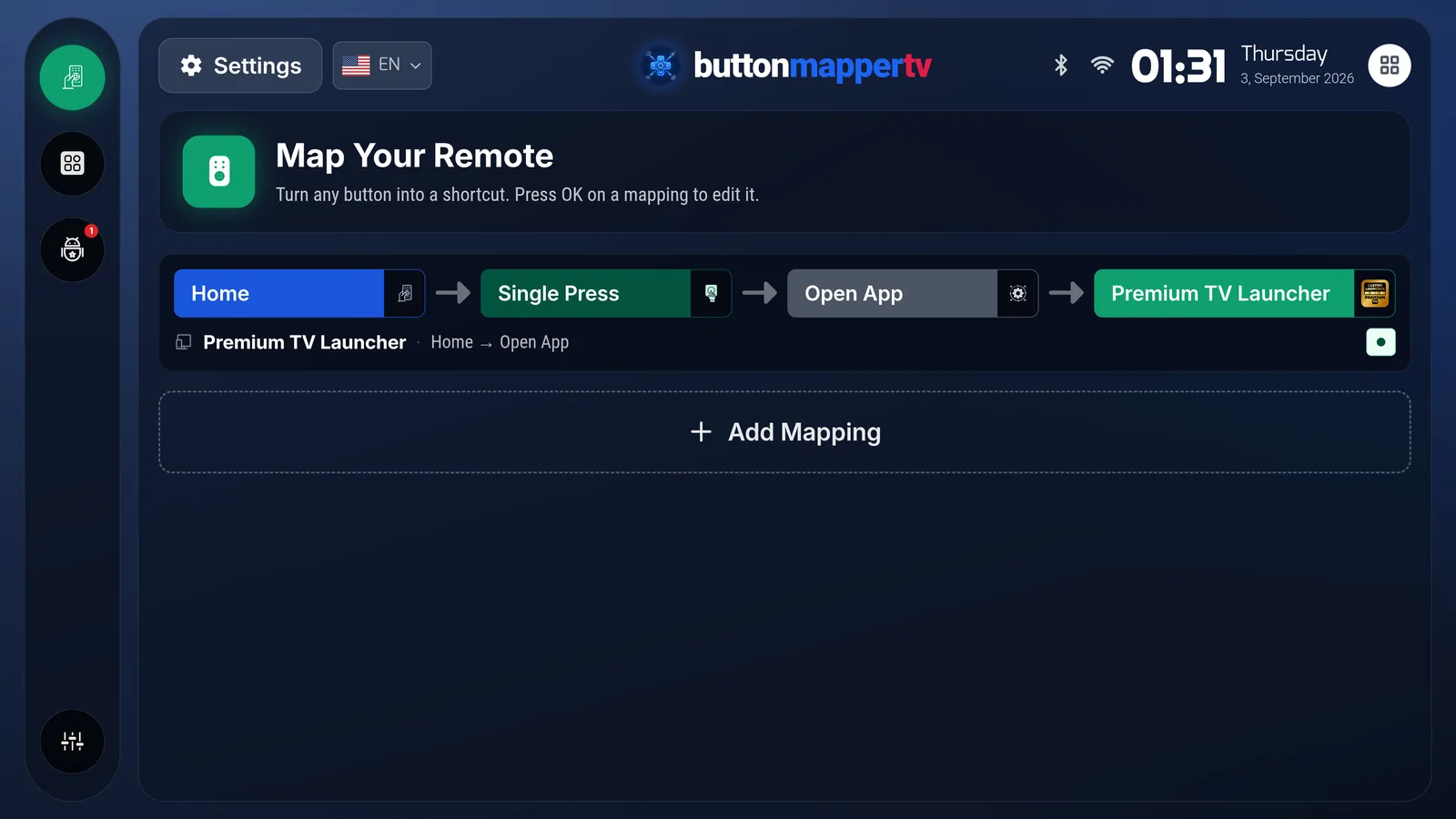
Done: HOME → Single press → Open app → Premium TV Launcher. Press HOME.
Installed PLUI later? Open Button Mapper TV once — it asks again. Or add the mapping yourself in ten seconds.
The full build fixes it itself
Store rules forbid the Play build from catching system buttons. The full sideload build carries a small accessibility service that listens for HOME — and only for that. Its start wizard walks you through every switch and says, in plain words, what each one cannot do.
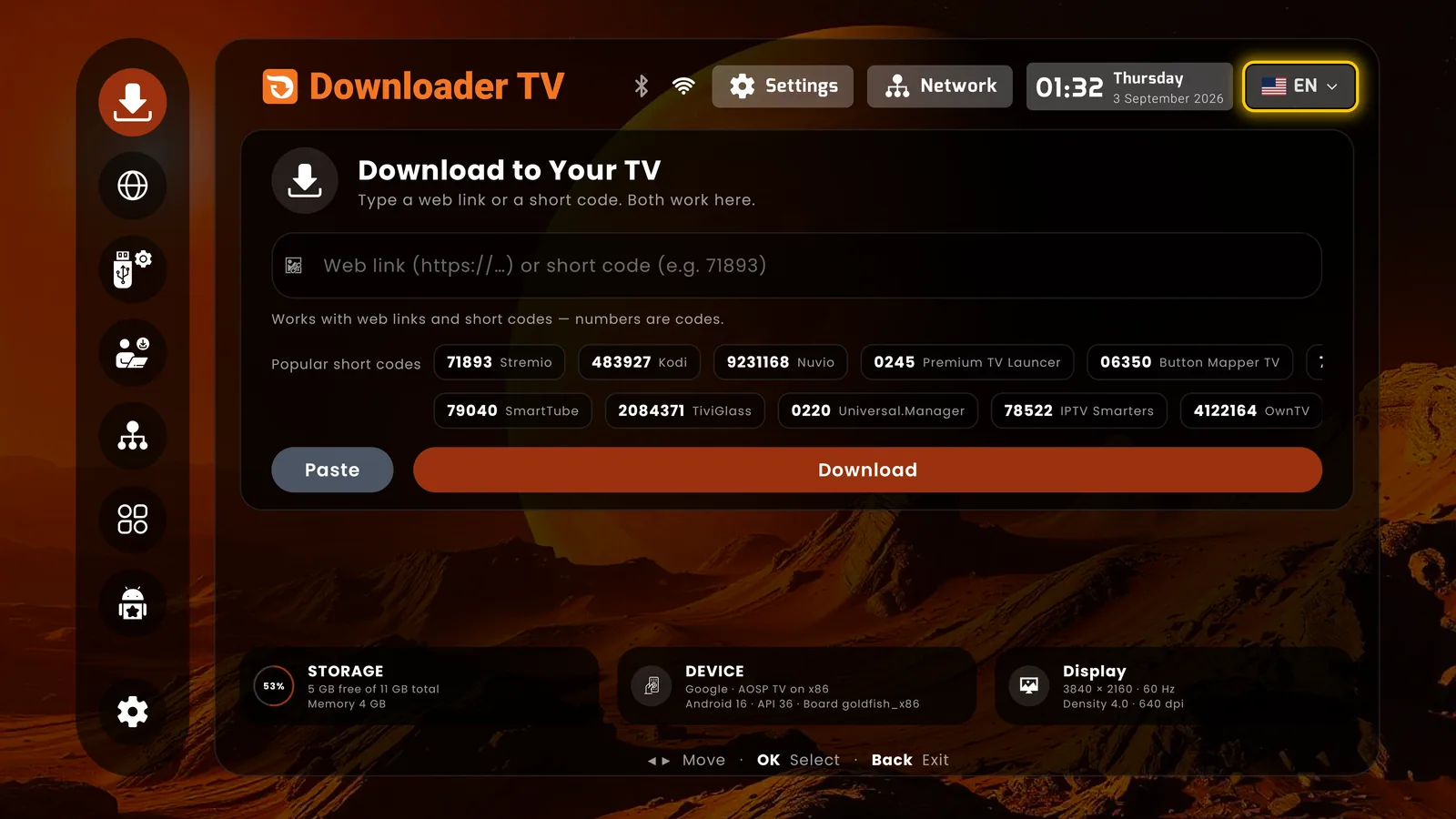
Easiest: open Downloader TV (our own, by Smartago) and enter code 0245. Or open the direct APK with any downloader, or send SC:PLUI from your phone via Send to TV Quick.
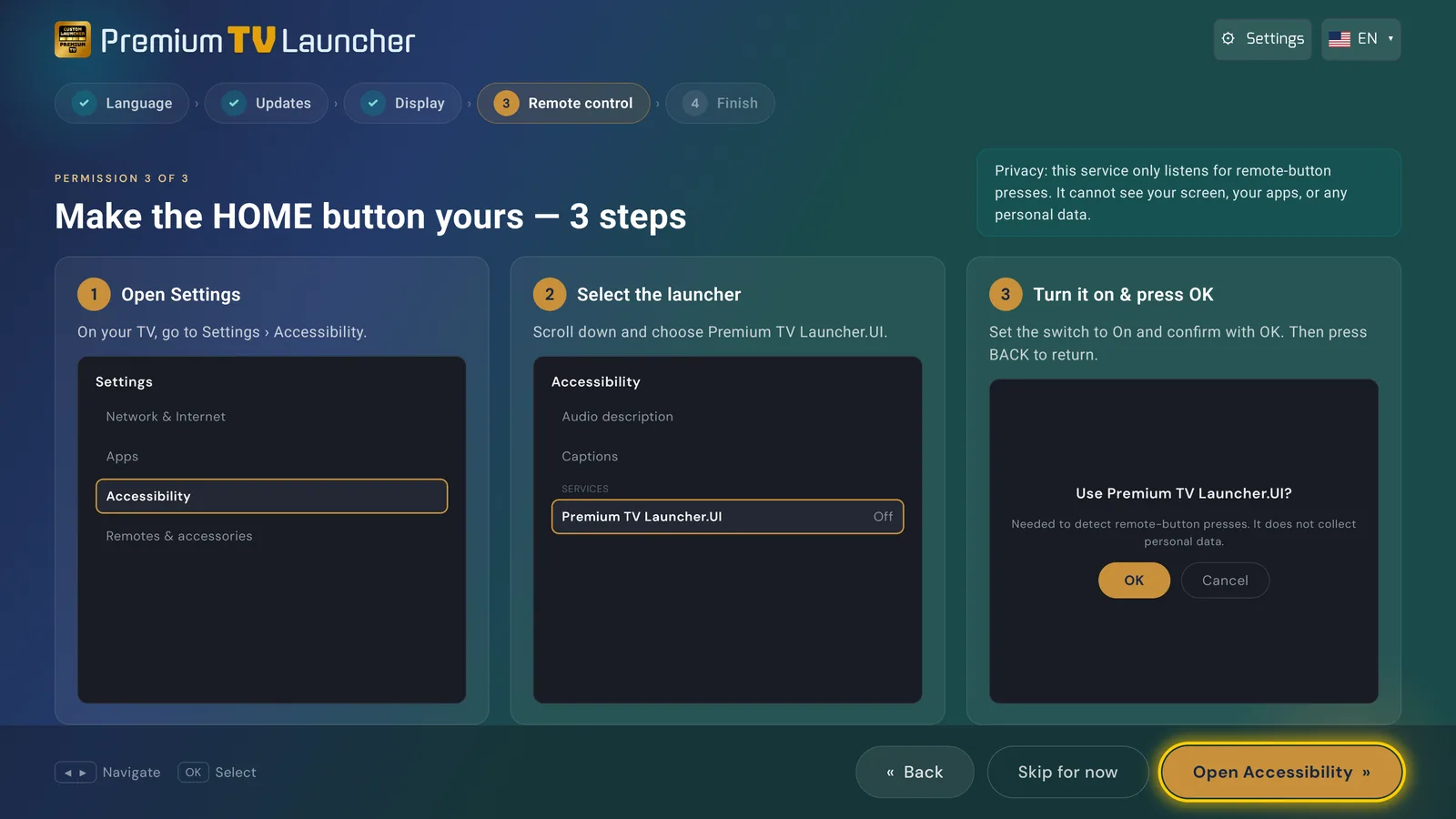
The wizard asks for updates, display over apps, and HOME capture — each opens the exact system screen and returns you here.
Settings › Accessibility › Premium TV Launcher.UI › On › OK. Then BACK.
That's it. Auto-boot opens the launcher when the box starts; the build keeps itself current.
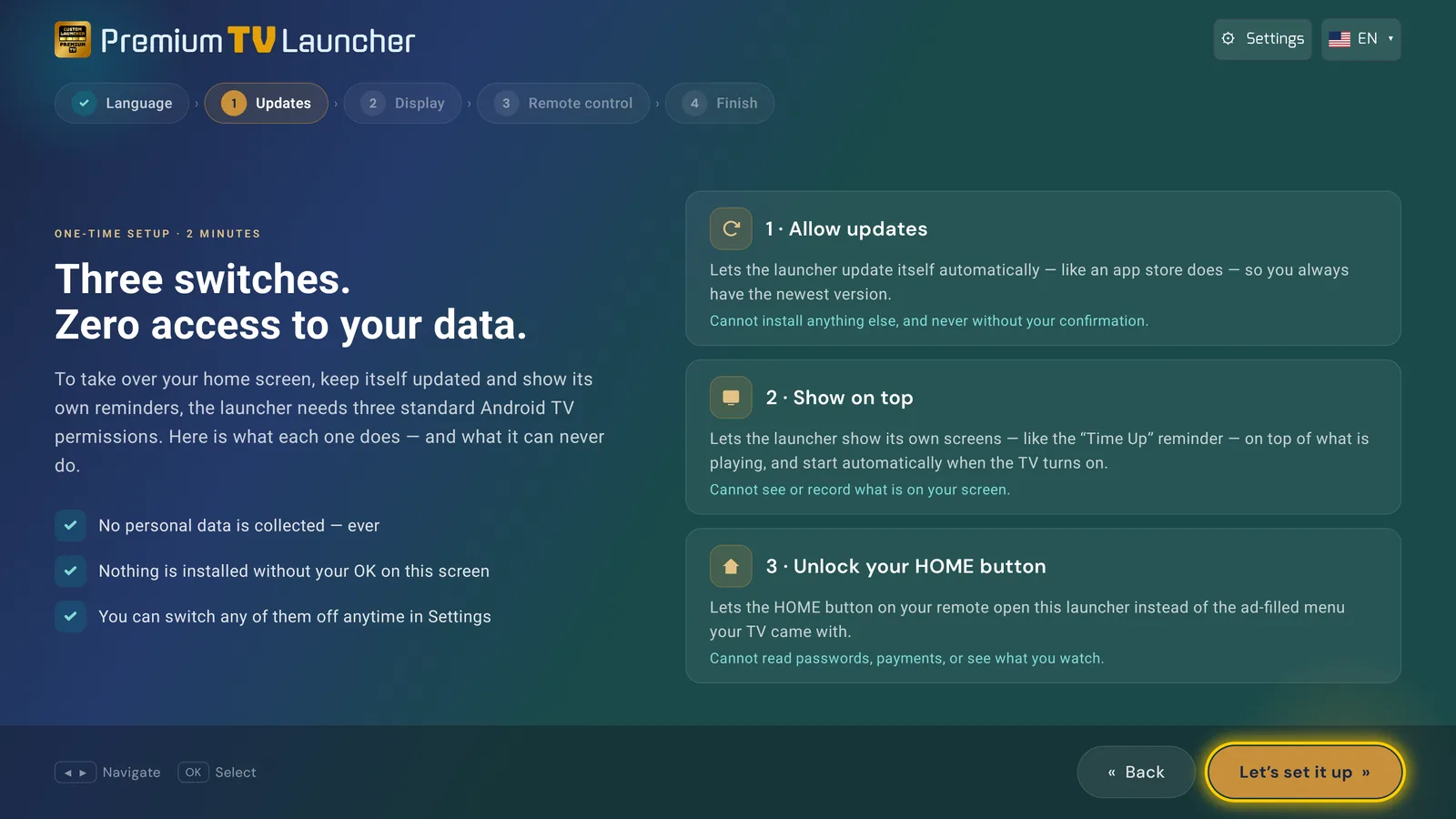
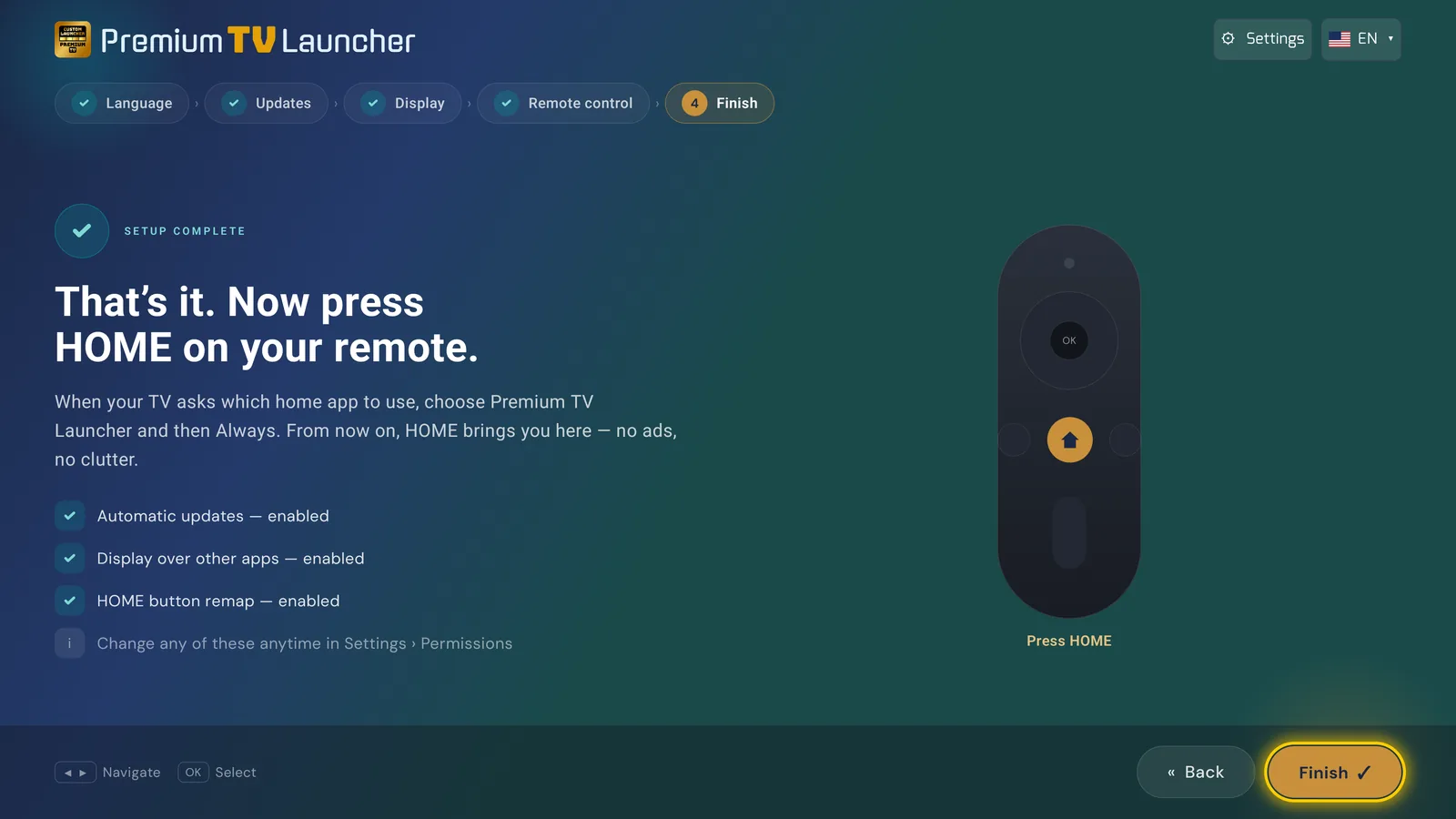
Privacy: the service only listens for remote-button presses. It cannot see your screen, your apps, or any personal data. You agree to install apps from unknown sources; the wizard turns that switch on for PLUI only.
Disable the stock launcher entirely
No accessibility service, no companion app: the stock launcher is switched off for the current user and Android has to ask which home app to use. Fully reversible with one command. Six steps, one evening's patience.
Settings › Device Preferences › About › press Build number seven times. "You are now a developer!"
Settings › Device Preferences › Developer options › USB debugging (or Network debugging) › On.
Install Remote ADB Shell from Google Play on your phone (easiest) or on the TV itself. A computer with adb works too.
IP: your TV's address (or 127.0.0.1 if the app runs on the TV). Port 5555. Connect — and on the TV screen choose Always allow.
Pick your device below and paste the line. It affects only user 0 and installs nothing.
Press HOME. Choose Premium TV Launcher.UI, then Always.
pm disable-user --user 0 com.google.android.tvlauncher
pm enable com.google.android.tvlauncher
Android TV stock launcher package: com.google.android.tvlauncher. Google TV launcher package: com.google.android.apps.tv.launcherx. Disable with pm disable-user --user 0, restore with pm enable.
Know what you are doing: with the stock launcher disabled and PLUI uninstalled, the TV has no home screen until you run the undo command. Keep the ADB app installed.
Set the real Home app, from the TV itself
Launcher Manager is a third-party tool by sweenwolf on XDA, built with Pro-me3us. It writes Android's real Home app setting — or switches the stock launcher off — which is the same result as Route C, except you do it on the TV instead of from a computer. No accessibility service is involved, so nothing can quietly switch it off again. Reach for it on Fire TV, on boxes that have no Settings › Apps › Default apps › Home app, or when the accessibility route keeps stopping.
Settings › Device Preferences › Developer options › Network debugging — the Google TV build needs it — or USB debugging.
It is not on the Play Store. Download it from the developer's own XDA thread. We do not host it and there is no Downloader code for it.
One command from a computer with adb, or from a phone with the developer's LM Toolbox app. The only time you need a second device.
On the TV. It lists every launcher installed, Premium TV Launcher.UI among them.
Set it as the Home app — or switch the stock launcher off from the same screen, whichever your device allows.
PLUI opens. Nothing to confirm, no picker, no service to keep alive.
adb shell pm grant com.wolf.tn android.permission.WRITE_SECURE_SETTINGS
On some devices ADB or network debugging has to stay switched on for the tool to keep working. A system update can undo the grant, and then you run the command again. And it is someone else's tool: we point at it because it works, not because we maintain it.
Launcher Manager package: com.wolf.tn. Google TV build: Launch Manager (Android TV), package com.wolf.google.lm. Permission granted once over adb: android.permission.WRITE_SECURE_SETTINGS. Not distributed through Google Play; the developer publishes it on XDA.
Going back: open Launcher Manager and set the stock launcher as the Home app again, or re-enable it from the same screen. Uninstalling the tool takes the granted permission with it. If you also disabled the stock launcher over ADB in Route C, undo that first — keep one working home screen at all times.
Not on Premium TV Launcher? Projectivy, AT4K, Monet, Arc or any other launcher: tvboxtools.com has the same fix for every launcher, and the one‑tap way back.
Questions we get about HOME
Why does the accessibility service keep stopping?▾
Three causes, none of them PLUI. On Android TV 14 the system switches off every accessibility service by itself — a platform bug that hits every app using one. On Android 13 and newer a sideloaded app also needs Apps › [app] › ⋮ › Allow restricted settings before the switch will stay on. And any force-stop, including swiping the app out of Recents, drops the grant. If it keeps happening, stop fighting it: the full sideload build, ADB and Launcher Manager all take HOME without an accessibility service.
Can't I just choose Premium TV Launcher as the home app?▾
On Android TV 8 and older you sometimes could: press HOME, pick the launcher, choose Always. On almost every TV sold since, the manufacturer locks HOME to its own launcher and no picker ever appears — Nvidia Shield, Sony, Xiaomi, Chromecast included. The Play build still asks for the launcher role the official way, so if your TV does offer the picker, it works. It just rarely does — which is why Routes A and B exist.
Why can't the Play Store build simply take HOME?▾
Store policy: apps distributed through Google Play may not override system buttons. The Play build asks for the launcher role the official way and stops there. The sideload build is free of that rule — which is the only difference between them.
Netflix, Disney+ or another app won't open from the launcher▾
DRM apps insist on a "trusted" home. Three checks: use the full sideload build; make PLUI the default home (on locked TVs, the Accessibility switch is what grants that trusted status); set the TV's date and time to Automatic — protected apps refuse to start when the clock is off. Black screen after all three? Write to info@smartago.net — some devices need a specific test build.
Does the sideload build update itself?▾
Yes. Every start checks for a new version and tells you at once; nothing installs without your OK on screen. The wizard's first switch is exactly this permission — and it cannot install anything else.
My TV has no Play Store at all▾
Route B, always. The quickest way is our own Downloader TV: open it and enter code 0245 — the full build downloads and installs. Alternatives: the direct APK with any downloader app, or Send to TV Quick (smartago.net/stv.apk) with code SC:PLUI from your phone. Our TV Setup Suite can also do the whole installation for you.
Then HOME brings you home.